
Multiple Monitors, Missing Admin or Designer Clients, and notes.ini mojo
 Category Technical notes.ini Designer Admin Help
One of the nice features about the multiple-client design (first introduced in R5) of Lotus Notes is that each client "remembers" where you last left it. When you close any of the "special" Notes Clients (Admin, Designer, or Help); the next time you launch that client it will appear in the same window location and with the same size that you closed it. This is nice, because it allows you to set up your working environment in a manner best suited to you. However, as with most cool UI things, the Law of Unintended Consequences applies. Now, to be fair, Notes isn't the only application that suffers from this problem -other windows applications have very similar issues. But this post is about Lotus Notes.
If you, like me, use multiple monitors then you've probably set up your Notes environment with different clients on different monitors. My laptop has an absolutely incredible 17" LED display (1920 x 1200), and this is where I normally run my Designer client. I use a secondary 19" wide-screen monitor, and that is where I normally position my normal Notes, Admin, and Help Clients. This works well for me, and helps me to operate at peak efficiency. That is, until I take my laptop elsewhere (such as a client's office, or coffee shop, or whatever). If I launch my Admin or Help client they start just fine, and I can see that they are running by checking the task bar or the task manager, but they are nowhere to be found. They are in fact running, but because of their "remember where I was" feature, they render in a non accessible area of my UI. My Designer client doesn't suffer from this issue because I normally keep it positioned on my laptop monitor.
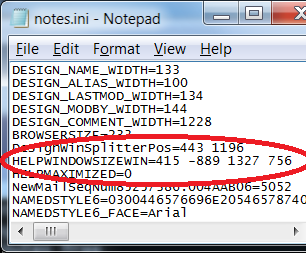
The culprit (and the fix) can be found in your notes.ini file. It is the XXXXWINDOWSIZEWIN parameter; where XXXX is replaced by ADMIN, HELP, or DESIGN. This parameter specifies the position and size of the particular client:
XXXXWINDOWSIZEWIN= TopLeft_Xpos, TopLeft_Ypos, Pixels_Width, Pixels_Height
In windows, the X-Y coordinates are a little but funky. On the primary monitor, 0,0 is the top left pixel. Numbers increase going from top left to bottom right. The X-Y coordinates for additional monitors are controlled by the operating system, and based on the physical positioning of those monitors relative to the primary monitor. When configuring your system for spanning the display across multiple monitors you specify this positional relationship.
In my office my secondary monitor is set up physically above my laptop. This means that it's X-Y coordinates start with 0,0 at the bottom left, with X coords increasing and Y coords decreasing (going negative) going to top right. Which means that for me, the TopLeft_Ypos value for my ADMINWINDOWSIZEWIN and HELPWINDOWSIZEWIN notes.ini parameters will always be a negative number. Your coordinates will depend on how you have your monitors set up. The downside of this is that my Admin and Help clients are rendering in a negative Y coordinate space, which does not exist when I'm only using my laptop display. The solution is simple, if a bit of a hassle.
- Close all Notes Clients
- Open notes.ini in an editor
- Change (or delete) the offending XXXXWINDOWSIZEWIN parameters
- Save and close notes.ini
- Launch Notes
Yes, it would be nice if Windows could/would auto detect and correct this issue. But until (if ever) this happens, at least this PIA solution will work.
-Devin


 The Pridelands
 Chris Byrne
 Show n' Tell Thursdays
 Maddox


Comments
In the task bar, make sure that the invisible program is running, right click on it, and select Move from the menu. Since you know that it is positioned above your physical screen, just use your arrow keys (down key in this case) until the title bar of the program is visible on the screen.
My secondary screen is to the right of my laptop screen, so I often have to use this trick to bring back invisible windows.
Instead of right clicking, you can also make sure the program is active, and then press Alt+Space on your keyboard, followed by M, which is the shortcut key for Move on an English language Windows version.
Posted by Peter von Stöckel At 08:40:36 AM On 01/08/2010 | - Website - |
And regarding multiple monitors -- of which I have four on my desktop system, see picture at { Link } -- it's a relief that Notes 8.0.x (or maybe it is only 8.5.x) at last fixes the problem where the Properties Box could not be moved off the primary monitor.
Posted by Tony Austin At 08:41:02 AM On 01/08/2010 | - Website - |
I gave up Windows XP in July last year, so just tried it with Windows 7's quite different Task Bar handler to see if it works the same way, and it doesn't.
You'll find that it's not the Task Bar icon itself that you need to right-click with Windows 7. Rather, you have to right-click on the relevant "Live Preview" thumbnail that pops up when you hover over that particular Task Bar icon.
Posted by Tony Austin At 08:55:03 AM On 01/08/2010 | - Website - |
Posted by Peter von Stöckel At 09:24:13 AM On 01/08/2010 | - Website - |
@1 - Thanks for the tip Peter. That would have worked great if I was still running XP. However (I neglected to mention this in my post) I'm running Windows 7 (64bit); and my taskbar no longer contains those options.
-DevinPosted by Devin Olson At 09:27:06 AM On 01/08/2010 | - Website - |
@Peter: I've been running Windows 7 since the public RC -and I absolutely LOVE it. Microsoft has finally released an operating system that lives up to the promise of OS/2.
Posted by Devin Olson At 09:38:43 AM On 01/08/2010 | - Website - |
Posted by Vitor Pereira At 10:10:27 AM On 01/08/2010 | - Website - |
-Before folks start chiming in with "Firefox is better than..." comments; yes, I agree, Firefox is better than....
I use FF as my preferred browser. However, let's all be honest about it. FF is super fast, and very awesome; but it is an absolute memory pig.
Anyway Vitor, FF seems to work just fine in Win7. But then again, I've got 8 Gig of RAM in this machine, so the memory issues take quite a while to cause me any problems.
-Devin.
Posted by Devin Olson At 10:24:09 AM On 01/08/2010 | - Website - |
Posted by Vitor Pereira At 10:36:30 AM On 01/08/2010 | - Website - |
Posted by Peter von Stöckel At 01:52:12 PM On 01/08/2010 | - Website - |